I have two Windows 10 PC (under the same network), one version is 10.0.10586 which is able to access my Linux samba share, another is 10.0.17763 which has trouble to access with below error:
"Windows cannot access" 0x80004005
Cause
Windows prevents you from accessing
network shares with guest access enabled. Guest access means connecting
to network shares without authentication, using the built-in "guest"
account.
This has no reference to the SMB1 protocol which was disabled in the latest Windows 10 release.
Resolution
To enable guest access again, configure the following GPO (gpedit.msc):
Computer configuration > administrative templates >
network > Lanman Workstation: "Enable insecure guest logons" =
Enabled
NOTE
Please also make sure you have below SMB 1.0/CIFS Client installed in your Windows 10

About "Enable insecure guest logons"
Insecure guest logons are used by file servers to allow unauthenticated access to shared folders. While uncommon in an enterprise environment, insecure guest logons are frequently used by consumer Network Attached Storage (NAS) appliances acting as file servers. Windows file servers require authentication and do not use insecure guest logons by default. Since insecure guest logons are unauthenticated, important security features such as SMB Signing and SMB Encryption are disabled. As a result, clients that allow insecure guest logons are vulnerable to a variety of man-in-the-middle attacks that can result in data loss, data corruption, and exposure to malware. Additionally, any data written to a file server using an insecure guest logon is potentially accessible to anyone on the network. Microsoft recommends disabling insecure guest logons and configuring file servers to require authenticated access."
Reference
Windows 10 Cannot Access SMB2 Share Guest Access
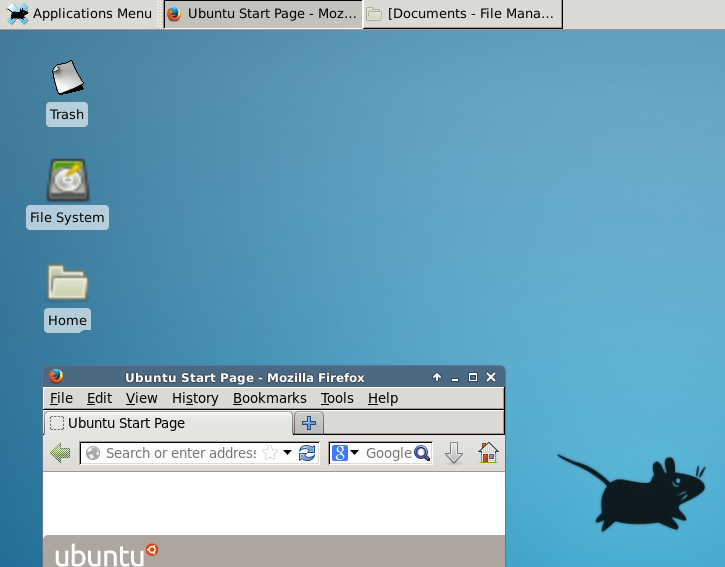
xrdp shows blank screen on ubuntu 16.04
The quick solution is to install xfce4 package
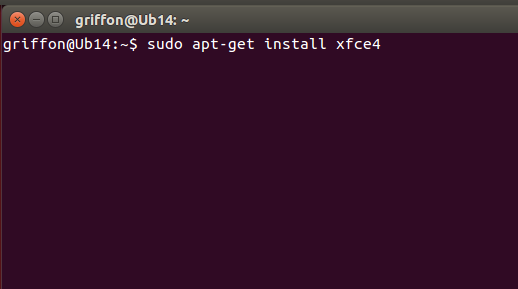
Installing the xfce4 Desktop environment
In the Terminal console; type the following commandsudo apt-get update
sudo apt-get install xfce4
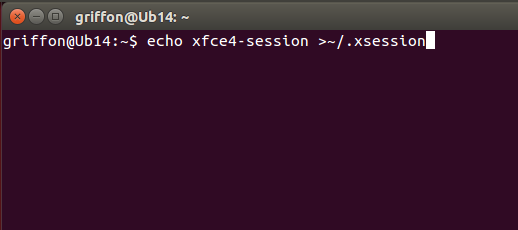
Configure xrdp to use xfce desktop environment
echo xfce4-session >~/.xsession
sudo service xrdp restart
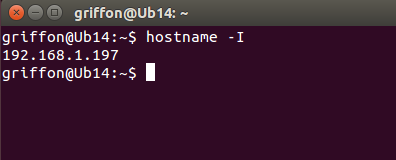
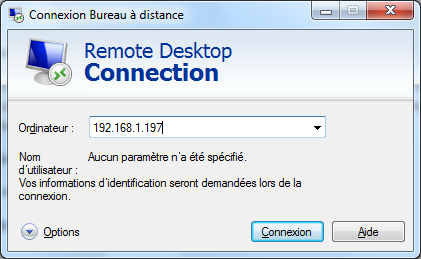
Test your xrdp connection
hostname -I


"Remote" tab missing in My Computer properties
Outlook unable to search emails downloaded from Google Apps Sync
If you have Google Apps Sync installed to download the emails from Google Mail and you are not able to search the emails, the method below may help you to resolve the problem:
Environment: Windows 7 + Outlook 2010
Problem: Try to use the search box within Outlook to search the emails, it
keeps giving nothing and the index status is showing nothing to be indexed
If the above registry subkey "Windows Search" is not there, please create it and create PreventIndexingOutlook entry in there and set it to 0.
Exit the Registry and try to search now in Outlook.
Reference: http://support.microsoft.com/kb/972814/en-au
Collecting Mini Dump file from Windows 2003 Server
Summary:
Under Windows 2003 Server, sometimes Dr. Watson logs are not generated when an application crashes. However, mini dump files are always generated for the Windows error reporting service. Unfortunately by default this service queues notifications and doesn’t usually alert the user until the server is rebooted. Below are instructions on configuring the Windows error reporting service to instantly display a dialog when a crash occurs, and how to retrieve the crash information.Description:
To stop the Windows error reporting service from queuing crash information:- Open the registry editor (Start -> Run -> regedit)
- Navigate to HKEY_LOCAL_MACHINE\SOFTWARE\Microsoft\PCHealth\ErrorReporting\
- Change the DWORD ForceQueueMode value to 0
- Restart the machine
To retrieve the mini dump file when an application crashes.
- After an application crashes a dialog with the following title will be displayed:
“(Application Name) has encountered a problem and needs to close. We are sorry for the inconvenience.”
- Click the “click here” hyperlink
- A second dialog will appear with an “Error signature” section and a “Reporting details” section. Keep a record of the “AppVer”.
- Click the “click here” that follows “To view technical information about the error report”.
- A third dialog with 2 complete paths will be displayed. They usually follow the format of:
(System Partition):\DOCUME~1\ADMINI~1\LOCALS~1\Temp\(Folder name starting with W)\(File name)
- Open Windows Explorer and navigate to the folder the starts with “W”
- (Do not dismiss any of the dialogs; doing so will remove the folder)
- Copy the folder to the desktop
- Create a text file and enter the “AppVer” into it, and add the file to the folder on the desktop
- ZIP the folder and send it to Group Logic
Windows Cluster - Manual Failover vs Automatic Failover
Often, DBA's are given a task to find the RCA of SQL Server failover in cluster and it is difficult to find whether the failover is an automatic failover (due to some issue) or a manual failover (by any other dba, system admin etc).
An easy way to figure that out is to take a look at the cluster log (which is generally seen at C:\Windows\Cluster\Cluster.log on all the member nodes in cluster.
Open the log and search for these keywords “FmsMoveGroupRequest” and “FmpDoMoveGroup”. You will find entries similar to the below.
This says that it is a manual failover and not an automatic failover
1.INFO [FM] FmsMoveGroupRequest: To move group ‘a47f0c1a-fc1b-45ed-8a34-07bf59300c9c’2.INFO [FM] FmpDoMoveGroup: Entry3.INFO [FM] FmpMoveGroup: Entry4.INFO [FM] FmpPickNodeFromPreferredListAtRandom: Picking node for group a47f0c1a-fc1b-45ed-8a34-07bf59300c9c [SQL2005], suggested node 1…5.INFO [FM] FmpPickNodeFromPreferredListAtRandom: Node 1 for group a47f0c1a-fc1b-45ed-8a34-07bf59300c9c is user preferred…6.INFO [FM] FmpPickNodeFromPreferredListAtRandom: Selected node 1 for group a47f0c1a-fc1b-45ed-8a34-07bf59300c9c…7.INFO [FM] FmpMoveGroup: Moving group a47f0c1a-fc1b-45ed-8a34-07bf59300c9c to node 1 (1)8.INFO [FM] FmpNotifyGroupStateChangeReason: Notifying group SQL2005 [a47f0c1a-fc1b-45ed-8a34-07bf59300c9c] of state change reason 1…1.INFO [FM] FmpCompleteMoveGroup: Exit, status = 02.INFO [FM] FmpMovePendingThread Exit.Information about Dr. Watson
Dr. Watson is a program error debugger that detects and diagnoses program errors and creates User.dmp and DrWtsn32.log files to contain the diagnostic data. In Windows NT these files are stored in the %systemroot% folder. In Windows 2000, these files are stored in the %systemdrive%\Documents and Settings\All Users\Documents\DrWatson folder. For Windows XP, these files are stored in the %systemdrive%\Documents and Settings\All Users\Application Data\Microsoft\Dr Watson folder. The DrWtsn32.log file is appended each time a program error occurs; the User.dmp file is overwritten each time.
To turn off the Dr Watson debugger, apply the following Windows NT / Windows 2000 / Windows XP registry hack:
Hive: HKEY_LOCAL_MACHINE
Key: SOFTWARE\Microsoft\Windows NT\CurrentVersion\AeDebug
Name: Auto
Type: REG_DWORD
Value: 0 disable
Value: 1 enable
To re-enable Dr Watson, you can change Auto back to 1 or from the command line type drwtsn -i.
To change the folder for log files, apply the following Windows NT / Windows 2000 / Windows XP registry hack:
Hive: HKEY_LOCAL_MACHINE
Key: SOFTWARE\Microsoft\DrWatson
Name: LogFilePath
Type: REG_SZ
This is the registry key containing most of the values for Dr Watson including AppendToLogFile, CrashDumpFile (change from default name user.dmp), CreateCrashDump, MaximumCrashes, SoundNotification, VisualNotification, and Wavefile.
The AppendToLogFile value controls whether Dr. Watson creates a new log file or appends data to the old log file for each application error that occurs:
Hive: HKEY_LOCAL_MACHINE
Key: SOFTWARE\Microsoft\DrWatson
Name: AppendToLogFile
Type: REG_DWORD
Value: 0 new
Value: 1 append
The CrashDumpFile value controls the path and filename to use when creating a crash dump file :
Hive: HKEY_LOCAL_MACHINE
Key: SOFTWARE\Microsoft\DrWatson
Name: CrashDumpFile
Type: REG_EXPAND_SZ
The CreateCrashDump value controls whether Dr. Watson creates a crash dump file after an application crash has occured :
Hive: HKEY_LOCAL_MACHINE
Key: SOFTWARE\Microsoft\DrWatson
Name: CreateCrashDump
Type: REG_DWORD
Value: 0 disable
Value: 1 enable
The DumpAllThreads value controls whether Dr. Watson should dump the contents of all threads during an application error :
Hive: HKEY_LOCAL_MACHINE
Key: SOFTWARE\Microsoft\DrWatson
Name: DumpAllThreads
Type: REG_DWORD
Value: 0 disable
Value: 1 enable
The DumpSymbols value controls whether Dr. Watson should dump the contents of the symbol tables during an application error :
Hive: HKEY_LOCAL_MACHINE
Key: SOFTWARE\Microsoft\DrWatson
Name: DumpSymbols
Type: REG_DWORD
Value: 0 disable
Value: 1 enable
The SoundNotification value controls whether Dr. Watson plays a wav file when an application error occurs :
Hive: HKEY_LOCAL_MACHINE
Key: SOFTWARE\Microsoft\DrWatson
Name: SoundNotification
Type: REG_DWORD
Value: 0 disable
Value: 1 enable
The WaveFile value specifies the path and filename of the wave file to be played during an application error :
Hive: HKEY_LOCAL_MACHINE
Key: SOFTWARE\Microsoft\DrWatson
Name: SoundNotification
Type: REG_EXPAND_SZ
The VisualNotification value controls whether Dr. Watson displays a popup message box when it encounters an application error :
Hive: HKEY_LOCAL_MACHINE
Key: SOFTWARE\Microsoft\DrWatson
Name: VisualNotification
Type: REG_DWORD
Value: 0 disable
Value: 1 enable
There are various debugger utilities besides Dr Watson. Lotus Notes replaces Dr Watson with its debugger. To switch back to Dr Watson, should another debugger be enabled, apply the following Windows NT / Windows 2000 registry hack:
Hive: HKEY_LOCAL_MACHINE
Key: SOFTWARE\Microsoft\Windows NT\CurrentVersion\AeDebug
Name: Debugger
Type: REG_SZ
Value: drwtsn32 -p %ld -e %ld -g
Best overall compression program
| Position | Program | #1st pos | #2nd pos | #3th pos | #4th pos | #5th pos | #6th pos | #7th pos | #8th pos | Points |
|---|---|---|---|---|---|---|---|---|---|---|
| 01 | PAQ8PX | 6 | 2 | 2 | 0 | 0 | 0 | 0 | 0 | 88 |
| 02 | WinRK 3.1.2 | 4 | 4 | 1 | 0 | 1 | 0 | 0 | 0 | 82 |
| 03 | PAQAR 4.5 | 0 | 1 | 3 | 3 | 2 | 0 | 0 | 0 | 49 |
| 04 | NanoZip 0.08a | 0 | 0 | 1 | 2 | 1 | 2 | 3 | 1 | 33 |
| 05 | DURILCA 0.5 | 0 | 1 | 1 | 0 | 4 | 0 | 1 | 0 | 32 |
| 06 | SLIM 0.23d | 0 | 0 | 0 | 2 | 1 | 0 | 1 | 2 | 18 |
| 07 | STUFFIT 14 | 0 | 2 | 0 | 0 | 0 | 0 | 0 | 0 | 16 |
| 08 | ZPAQ 2.05 | 0 | 0 | 0 | 0 | 1 | 2 | 1 | 1 | 13 |
| 09 | LPAQ8 | 0 | 0 | 1 | 0 | 0 | 1 | 1 | 1 | 12 |
| 10 | PPMonstr J rev.1 | 0 | 0 | 0 | 0 | 0 | 3 | 0 | 1 | 10 |
| 11 | RKC 1.02 | 0 | 0 | 0 | 1 | 0 | 0 | 0 | 2 | 7 |
| 12 | EPM r9 | 0 | 0 | 0 | 0 | 0 | 1 | 1 | 0 | 5 |
| 13 | Ocamyd 1.66test1 | 0 | 0 | 0 | 0 | 0 | 0 | 2 | 0 | 4 |
- Scoring similar to Formula 1 2003 system:
1st place, 10 points; 2nd place, 8 points
3th place, 6 points ; 4th place, 5 points
5th place, 4 points ; 6th place, 3 points
7th place, 2 points ; 8th place, 1 point
- Only programs with at least 2 top8 scores will be listed.
- If two programs have the same amount of points the program with the most 1st places (2nd places etc) will be regarded the better program.
How to remove network drive from registry
First and foremost, back up your registry!! Then open regedit and search for Mountpoint key in the \HKEY)CURRENT_USER\Software\Microsoft\windows\CurrentVersion\Explorer folder find the share you need removed and delete it.
The registry key for my share was like this ##server#share and after i deleted and restart i could connect to the share no problem
How to recover postgres database from postgres data folder
If Windows crashed by some reason you can't get into the system, then if you have to reinstall Windows or upgrade to a new hard drive. As long as the Postgres data folder still there then you are lucky to get your database back.
1) install the same version postgres you had on the old system before, say postgres8.3;
2) stop the postgres service from the service form or use the command below:
net stop pgsql-8.3
3) open a CMD, then type in:
runas /user:postgres cmd
The above command will open a command window as postgres role, it will ask for the postgres service password to get the access. Please note here that is not postgres user password;
4) cd into postgres folder:
c:\program files\postgres\
5) delete everything under the data folder;
6) then copy the old data folder(say from U drive) cross, type in the command:
xcopy /H /E /I U:\program files\postgres\data C:\program files\postgres\data
7) restart postgres services from the service form or use the command below:
net start pgsql-8.3
After that, you should be able to log in to use your postgres database as before
How to setup an email forward Exchange 2007
1) Open Exchange Management Console
2) Expand Recipient Configuration
3) Click Mailbox
4) A list of all mailboxes will be appear in the right hand pane. Right click the mailbox you wish to setup the mail forward on.
5) Click properties
6) Click the mailflow settings tab
7) Double click Delivery Options
8.) Click the check box forward to
9) Browse for the mailbox you wish to forward emails to
10) Click OK to apply settings
If you wish for a copy of each email to remain in the users mailbox, click the tick box labelled Deliver message to both forwarding address and mailbox
How to remove postgres user from Windows
open CMD by administrator mode, then type in:
net user postgres /delete
If you just want to change user postgres' password to 'postgres', then type in:
net user postgres postgres
Userful Linux tools for windows
ssh & scp for Windows
PuTTY, (and its file transfer utility, pscp), are excellent Windows ssh/scp implementations, and are a piece of cake to get up and running. These programs are not zipped and do not require any installation.
Downloads:
putty: putty.exe
pscp: pscp.exe
nmap for Windows
Nmap ("Network Mapper") is a free and open source utility for network exploration or security auditing. Many systems and network administrators also find it useful for tasks such as network inventory, managing service upgrade schedules, and monitoring host or service uptime. Nmap uses raw IP packets in novel ways to determine what hosts are available on the network, what services (application name and version) those hosts are offering, what operating systems (and OS versions) they are running, what type of packet filters/firewalls are in use, and dozens of other characteristics. It was designed to rapidly scan large networks, but works fine against single hosts. Nmap runs on all major computer operating systems, and official binary packages are avalable for Linux, Windows, and Mac OS X.
Downloads
nmap 5.51 self-installer: nmap-5.51-setup.exe
nmap 5.51 command-line: nmap-5.51-win32.zip
rdesktop for Windows
rdesktop is a terminal services client for X windows by Matthew Chapman. This is a native Windows port of rdesktop.
Requirements
Windows 95 OSR2/98/Me/NT 4/2000/XP/2003/2008/Vista/7Download
rdesktop 1.6
Download: rdesktop-1.6.0-win32.zipRequirements:
X server for Windows (e.g. Xming or Cygwin X11)
You must have the X server running prior to using rdesktop.
Older versions: Note: this snapshot is not a complete port and requires Cygwin 1.5.12 to run.Binaries: rdesktop-bin-win32-20041201.zip
Source: rdesktop-src-win32-20041201.tar.bz2
Full native ports of rdesktop 1.2. Cygwin is not required.
Binaries: rdesktop-bin-win32-20030219.zip
Source: rdesktop-src-win32-20030219.tar.bz2
Binaries: rdesktop.zip
Source: rdesktop-src.tar.gz
Compiling rdesktop for Win32
http://www.soren.schimkat.dk/Blog/?p=69Licence
GNU General Public Licenserdesktop © Matthew Chapman 1999-2003 © Christopher January 2002-2003,2004
Related Links
www.rdesktop.orgHow to set Postgresql money type to use 3 decimal places in Windows
LINUX
=====
Under Linux, type command in postgres database:
set lc_monetary to 'ar_BH.utf8';
ar_BH represents Arabic (Bahrain) locale, the above command change the locale monetary setting on-the-fly in postgresql database, the let do a test:
select 34.888::text::money;
You will get 34.888 with 3 decimal places money type. Tested in Postgresql 8.4.6.
WINDOWS
=======
However the above set command will get an error message under Windows.
FATAL: invalid value for parameter “lc_monetary”
You will need to:
set lc_monetary to "Arabic, Bahrain";
This will set the lc_monetary to arabic locale but only display 2 decimal places by default, it seems everything right of the comma is ignored.
To workaround this, use an '_' in plase of ', ' like:
set lc_monetary to "Arabic_Bahrain";
Tested with Windows XP + PostgreSQL 9.0.3(this solution should work for PostgreSQL 8.3 or later version too)
Thanks Jasen who get this resolved, more information please see his post @ postgresql forum:
http://postgresql.1045698.n5.nabble.com/win-Locales-quot-Arabic-Gum-quot-td3369213.html
How to configure public folder in Exchange server 2007
1. Create a pulic folder
open Exchange Management Console
=> Public Folder Management Console
=> Default Public Folder
=> New Public Folder(from right-click menu)
then follow the wizard to create a public folder. Fox example give it a name Test, so the public folder path will be "\Test";
2. Use the Exchange Management Shell to add public folder permissions for a client user
open Exchange Management Shell
=> Run command
"Add-PublicFolderClientPermission -Identity "\Test" -AccessRights Owner -User TestUser"
This will give user "TestUser" the "Owner" accessRights which has full permission of the public folder;
More info please go to:
http://technet.microsoft.com/en-us/library/aa998834.aspx
Enable or Disable UAC From Windows Command Line
This should apply to Windows 7 / Vista
Disable UAC
C:\Windows\System32\cmd.exe /k %windir%\System32\reg.exe ADD HKLM\SOFTWARE\Microsoft\Windows\CurrentVersion\Policies\System /v EnableLUA /t REG_DWORD /d 0 /f
Enable UAC
C:\Windows\System32\cmd.exe /k %windir%\System32\reg.exe ADD HKLM\SOFTWARE\Microsoft\Windows\CurrentVersion\Policies\System /v EnableLUA /t REG_DWORD /d 1 /f
After you enable or disable UAC, you will have to reboot your computer for the changes to take effect.
Note: After disabling and turning off UAC, a red X shield icon of Windows Security Center will be displayed in the notification area (system tray).
The alert trigger events include the following:
* Disable Windows Firewall.
* Disable antivirus program.
* Do not install or uninstall anti-virus.
* Outdated virus definition and signature.
* Disable Automatic updates.
* Turf off User Account Control.
* Computer requires to restart after applying hotfix or update.
These security concerns is relatively minor and can be safely dismissed, especially if the issue is purposely or intentionally done. In this case, the WSC Alerts icon and message can be turned off so that the system no longer will trigger notification when a problem occurred.
1. If you can see the Security Center shield icon in the notification area, simply double click on the icon to open Windows Security Center. Else, click on Windows Start button, select Control Panel, and then Windows Security Center.
2. Click on “Change the way Security Center alerts me” link in the left pane in Windows Vista. In Windows XP, it’s located under Resources section.
3. In Windows Vista, choose either “Don’t notify me, but display the icon” or “Don’t notify me and don’t display the icon” option, with later as complete disable of all Security Center Alerts.
In Windows XP, a Alert Settings dialog box will appear. Clear the Firewall, Automatic Updates, and/or Virus Protection check boxes to disable the respective component’s alert, and then click OK.
Outlook: Folder sharing is not available
We have a user that wishes to share his contact list with other employees in his office.
Everyone receives email via the same Exchange 2007 server.
He did the Permissions for the contacts (Right click, permissions added the user) and when she selects "SHARE CONTACT" she gets the error
"Folder sharing is not available with the following entries because of permission settings on your network."
Possible Soulution
==================
If your user in cached mode? If yes, try to do a Send and Receive, if that fails, disable cached mode, restart outlook, try to share the contact again and then re-enable the cached mode.
Cache Mode Toggle in Outlook 2007:
Tools > Account Settings > Highlight your Exchange server account, and then click Change
To turn Cached Exchange Mode on or off, under "Microsoft Exchange Server:", check or uncheck Cached Exchange Mode. Click Next, and in the window that opens, click OK.
Click Finish. Restart Outlook for the change to take effect.
Outlook can't save password
The problem is Outlook ask for the password over and over again.
Solution
========
HKEY_CURRENT_USER\Software\Microsoft\Protected Storage System Provider
Delete the subkey
The user subkey folder resembles the following example:
S-1-5-21-124525095-708259637-1543119021-16701
Restart computer
Start Outlook, enter and save the password.
Thin client + Slax + LCD TV= Media Center


I have a 1.5TB external hard drive(with its own power adapter) and three computers at home, it was not convenient if I want to get the files or save them to the external storage. So I planned to make my external hard drive to be shared in the home network:
There are at least three ways to set up this:
1) NAS drive;
2) Router with USB support;
3) File server;
I chose option 3 because I also need a light-weight computer to connect to my LCD TV, ideally can play movies.
After a long time googling, I bought HP Thin Client 5710 from the internet. Here are the specs:
Transmeta Efficeon 1.2GHz
256 MB Flash memory,
256 MB DDR SDRAM (upgraded to 512MB)
(24 MB of system RAM is reserved for processor usage)
ATI® Radeon 7000M
10/100 BaseT Fast Ethernet,
4 USB 2.0 ports, 1 serial, 1 parallel, 1 PS/2,
Sound: Internal amplified speaker, full 16-bit stereo, 44 kHz sample rate
Weight: 1.4Kg
Operating Temperature Range 0 to 40° C
The advantage of using this Thin client for this Job rather than a full size PC are its size (small and unobtrusive), tiny power consumption and the fact that the unit is totally silent ( apart from its Audio Output ).
I uses Ubuntu at work, so I would like to install one of the Ubuntu edition or light weight Debian. Because the internal flash memory is too small(256MB) and it already has a Genuine Windows XP Embedded SP2 installed which I don't want it to be ruined. So I will need to install Linux to the USB flash drive and boot the system from there(This needs USB2.0 support, if your Thin Client only has USB1.1, don't try it).
I tested the following Linux editions:
1) Ubuntu 10.10 (too slow, not usable);
2) Xubuntu 10.10 (better but still slow);
3) LXDE (fast, but can't play movie well);
4) Puppy Linux (fast, good);
5) Slax (fast, good);
I picked Slax as my Thin Client OS, I likes its module management system.

The basic Slax version includes the following modules:
001-core.lzm
002-xorg.lzm
003-desktop.lzm
004-kdesktop.lzm
005-koffice.lzm
006-devel.lzm
007-firefox.lzm
To build a file server that the files can be used by the Windows computer, you will need to install samba-3.4.4.lzm. After set up, all my computer's can access the external hard drive now through the wireless network, even play movies.
For the Thin Client itself with Slax, kplayer is enough to play AVI movies well without video latency issue, you are also able to load subtitles if you needed. But by default it does not support some video format like rm,rmvb etc. Install codecs-essential-20071007.lzm will load most of common codec in the system to allow you to watch different formats of movies.
There were still some problems after using Slax USB version, here are the solutions:
1)
The major problem I had from Slax was KDE mime type error, if you have this problem you will not be able to open any drives or folders as it will prompt an "open with" dialog box.
The mime type error is caused by a PosixOVL error. If you're running Slax from a FAT partition, it can't save file permissions the way it'd do on a Posix file system like EXT2 or XFS. PosixOVL is supposed to compensate for that by saving the permissions in individual files, but it's still quite buggy at this point.
The obvious solution is to not save your changes to a FAT partition. The default Slax installation package already include a file called slaxsave.zip, unzip one of the files inside like save1024.zip(include a 1GB size slaxsave.dat file), this file represent a XFS-partition-image. Please see ReadMe file or click here for more information.
2)
512MB memory for this Thin Client is not enough sometimes, so you need to create a swap "partition" for the system. The "partition" here doesn't have to be a real physical one, we can make a swap file as a virtural swap partition. The steps are:
1 dd if=/dev/zero of=/mnt/hdc1/slax/swapfile bs=1M count=1024
2 mkswap /mnt/hdc1/slax/swapfile
3 swapon /mnt/hdc1/slax/swapfile
4 (adding this text in /etc/fstab file )
/mnt/hdc1/slax/swapfile none swap sw 0 0
(reference: how can create swap(virtual memory)in-live-slax)
How to find USB VID/PID on various operating systems
Linux users can, of course, just use lsusb or usbview. Run as root because on some systems, this doesn't show all the information otherwise.
lsusb (short form)
$ sudo lsusb
Bus 002 Device 049: ID eb1a:1760 eMPIA Technology, Inc.
Bus 002 Device 007: ID 04e8:323a Samsung Electronics Co., Ltd ML-1710 Printer
Bus 002 Device 005: ID 055f:0006 Mustek Systems, Inc. ScanExpress 1200 UB
Bus 002 Device 003: ID 0409:0058 NEC Corp. HighSpeed Hub
Bus 002 Device 001: ID 1d6b:0002 Linux Foundation 2.0 root hub
Bus 001 Device 028: ID 0518:0001 EzKEY Corp. USB to PS2 Adaptor v1.09
Bus 001 Device 003: ID 046d:c03f Logitech, Inc. UltraX Optical Mouse
Bus 001 Device 001: ID 1d6b:0001 Linux Foundation 1.1 root hub
The "sudo" command is used to run the command as root (Adminstrative User) and is needed on systems where you don't normally log in as root. If you are already root, you can just run lsusb without the sudo. The "$" is just the command prompt and will vary depending on system configuration. It is normally a "$" if you are an ordinary user or "#" if you are root and is often preceeded by the name of the current directory and sometimes the machine name and username.
If you can't tell which device is the device you are interested in, unplug the device and repeat the listing then plug it back in and do the listing again. Compare the listings; the device which disappears and then reappears from the listing is the device you want.
lsusb (long form)
For this, you need the VID/PID obtained using the short form of lsusb. In this example, it was "eb1a:1760". If you use lsusb -v without this, you get the long form listing for all devices which can be very long indeed and include a lot of irrelevant information.
$ sudo lsusb -v -d eb1a:1760
To save the information above to a file use:
# lsusb -v eb1a:1760 > output.txt
The verbose listing not only decodes the USB device descriptor, it also decodes the class descriptors for hub, audio, HID, communications, chipcard, and video classes.
If you are using a Knoppix or Ubunto Live CD, you need a way to share this information with the outside world. You can run the firefox web browser (if your network adapter is working) and paste the information into a web form if that is all you need. Or you can save the info on a usb flash drive or to a windows hard disk partition.
If you create a USB flash drive to boot Knoppix or ubunto (directions on the net), create a small FAT32 partition on the flash drive so windows can easily see it.
usbview
usbview should not be mistaken for the similarly named utility on windows, although the names are the same and their purpose is similar. Usbview is a GUI application. It does not provide as much detail as lsusb -v but it provides it in a nice tree format.
Incidently, usbview also give you hints as to whether your device is plugged into a slow USB full speed port or a fast USB 2.0 high speed port. Some devices don't work reliably or run slower when not plugged into a high speed port. On my system the same device shows up under EHCI Host controller on a slow port but under USB 2.0 Hub Controller under EHCI host controller on a fast port. If it shows up under an OHCI Host Controller or UHCI Host Controller, it is connected to a slow port. Oddly, when plugged into the same port a webcam showed up under the EHCI Host Controller/USB2.0 Hub Controller but the keyboard shows up under OHCI Host Controller; this probably has something to do with emulation as the keyboard and mouse are used prior to booting.
usbview also reports the driver associated with each device, using the less than clear format "Name: uvcvideo"
# sudo usbview &
/proc/bus/usb/devices
cat /proc/bus/usb/devices will give a listing for all usb devices. It is more detailed than a plain lsusb and more succinct than a lsusb -v. You have to pick the approprate block of information (separated by blank lines) from the output. This is the form that it submitted to www.linux-usb.org and is suitable for posting where you can't post the full lsusb -v output. For a USB Video Class Device, it doesn't list supported resolutions, bitrates, encoding formats, or user controls which the lsusb -v listing does.
T: Bus=02 Lev=02 Prnt=03 Port=01 Cnt=02 Dev#= 12 Spd=480 MxCh= 0
D: Ver= 2.00 Cls=ef(unk. ) Sub=02 Prot=01 MxPS=64 #Cfgs= 1
P: Vendor=eb1a ProdID=1760 Rev= 6.08
S: Manufacturer=Infoxelle
S: Product=Digital Microscope
S: SerialNumber=VT1760
C:* #Ifs= 2 Cfg#= 1 Atr=80 MxPwr=500mA
A: FirstIf#= 0 IfCount= 2 Cls=0e(video) Sub=03 Prot=00
I:* If#= 0 Alt= 0 #EPs= 1 Cls=0e(video) Sub=01 Prot=00 Driver=uvcvideo
E: Ad=81(I) Atr=03(Int.) MxPS= 8 Ivl=32ms
I:* If#= 1 Alt= 0 #EPs= 1 Cls=0e(video) Sub=02 Prot=00 Driver=uvcvideo
E: Ad=82(I) Atr=02(Bulk) MxPS= 512 Ivl=0ms
lshw
If you run lshw with the -numeric option, it will show the vendor device ID t the end of the product: line. Leading zeros are supressed rather than printing as 4 digit hex.
/var/log/messages
The file /var/log/messages contains syslog information including messages printed by device drivers when they recognize a device. To use, unplug the device. Then run:
$ sudo tail -n 0 -f /var/log/messages
or
$ sudo tail -n 0 -f /var/log/messages | tee /tmp/logmessages
Wait ten seconds or so after you plug in the device and then hit control-C to stop the program. The tail program with these options will just show you the new information as it is added to the file. The tee program saves the output of the tail program in a file (/tmp/logmessages) while simultaneously showing the output to you.
Here is some sample output:
Apr 15 22:11:48 cervantes kernel: [1380806.451378] usb 2-8.2: USB disconnect, address 67
Apr 15 22:11:52 cervantes kernel: [1380812.296497] usb 2-8.2: new high speed USB device using ehci_hcd and address 68
Apr 15 22:11:52 cervantes kernel: [1380812.982274] usb 2-8.2: configuration #1 chosen from 1 choice
Apr 15 22:11:53 cervantes kernel: [1380812.982891] uvcvideo: Found UVC 1.00 device Digital Microscope (eb1a:1760)
Apr 15 22:11:53 cervantes kernel: [1380813.490404] input: Digital Microscope as /class/input/input1430
Apr 15 22:11:53 cervantes kernel: [1380813.490666] usb 2-8.2: New USB device found, idVendor=eb1a, idProduct=1760
Apr 15 22:11:53 cervantes kernel: [1380813.490673] usb 2-8.2: New USB device strings: Mfr=2, Product=1, SerialNumber=3
Apr 15 22:11:53 cervantes kernel: [1380813.490676] usb 2-8.2: Product: Digital Microscope
Apr 15 22:11:53 cervantes kernel: [1380813.490679] usb 2-8.2: Manufacturer: Infoxelle
Apr 15 22:11:53 cervantes kernel: [1380813.490681] usb 2-8.2: SerialNumber: VT1760