I have two Windows 10 PC (under the same network), one version is 10.0.10586 which is able to access my Linux samba share, another is 10.0.17763 which has trouble to access with below error:
"Windows cannot access" 0x80004005
Cause
Windows prevents you from accessing
network shares with guest access enabled. Guest access means connecting
to network shares without authentication, using the built-in "guest"
account.
This has no reference to the SMB1 protocol which was disabled in the latest Windows 10 release.
Resolution
To enable guest access again, configure the following GPO (gpedit.msc):
Computer configuration > administrative templates >
network > Lanman Workstation: "Enable insecure guest logons" =
Enabled
NOTE
Please also make sure you have below SMB 1.0/CIFS Client installed in your Windows 10

About "Enable insecure guest logons"
Insecure guest logons are used by file servers to allow unauthenticated access to shared folders. While uncommon in an enterprise environment, insecure guest logons are frequently used by consumer Network Attached Storage (NAS) appliances acting as file servers. Windows file servers require authentication and do not use insecure guest logons by default. Since insecure guest logons are unauthenticated, important security features such as SMB Signing and SMB Encryption are disabled. As a result, clients that allow insecure guest logons are vulnerable to a variety of man-in-the-middle attacks that can result in data loss, data corruption, and exposure to malware. Additionally, any data written to a file server using an insecure guest logon is potentially accessible to anyone on the network. Microsoft recommends disabling insecure guest logons and configuring file servers to require authenticated access."
Reference
Windows 10 Cannot Access SMB2 Share Guest Access
Disable default lubuntu user
When you run Lubuntu from a USB OS, you will be logged in automatically as default lubuntu user. We can use below command to rename it
usermod -l
It may give you below message:
usermod: user lubuntu is currently used by process
Please kill all lubuntu processes then rename lubuntu user once again, reboot the server there will be no lubuntu user exist
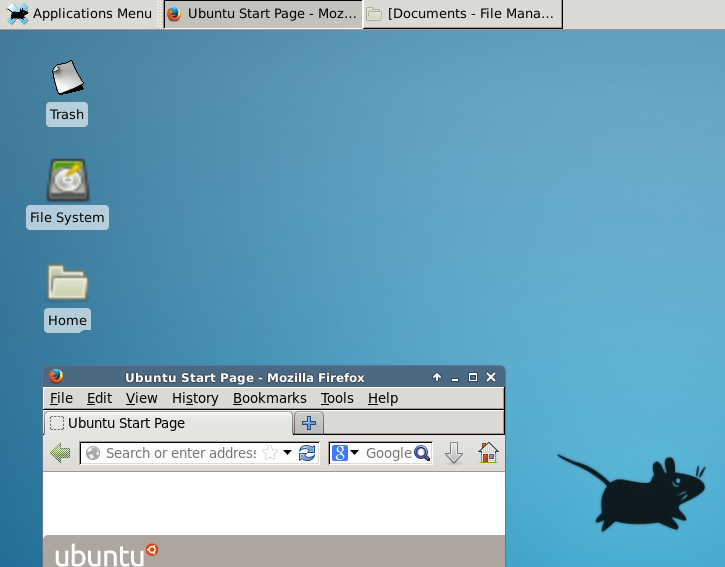
xrdp shows blank screen on ubuntu 16.04
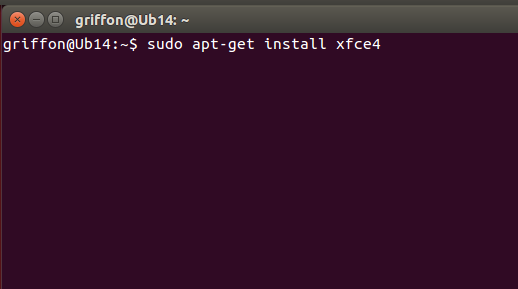
The quick solution is to install xfce4 package
Installing the xfce4 Desktop environment
In the Terminal console; type the following commandsudo apt-get update
sudo apt-get install xfce4
Configure xrdp to use xfce desktop environment
echo xfce4-session >~/.xsession
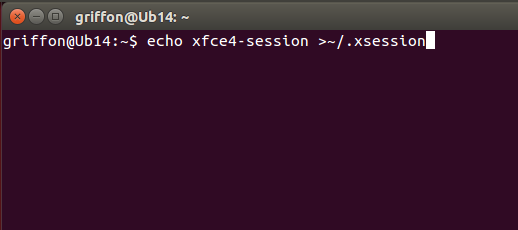
sudo service xrdp restart
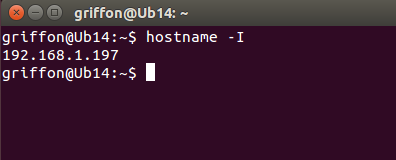
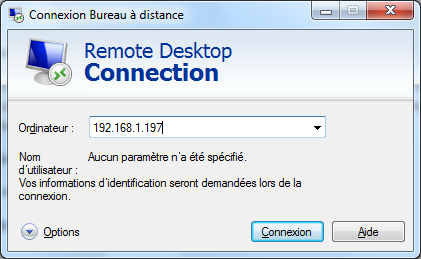
Test your xrdp connection
hostname -I


How to resolve "Sub-process /usr/bin/dpkg returned an error code (1)"
Method 1: Reconfigure Package Database
The first method you can try is to reconfigure the package database. Probably the database got corrupted while installing a package. Reconfiguring often fixes the problem.sudo dpkg --configure -aMethod 2: Use force install
If a package installation was interrupted previously, you may try to do a force install.sudo apt-get install -fMethod 3: Try removing the troublesome package
If it’s not an issue for you, you may try to remove the package manually. Please don’t do it for Linux Kernels (packages starting with linux-).sudo apt remove Method 4: Remove post info files of the troublesome package
This should be your last resort. You can try removing the files associated to the package in question from /var/lib/dpkg/info. for example the package name is "desktop-base"ls -l /var/lib/dpkg/info | grep -i desktop-basesudo rm -rf /var/lib/dpkg/info/desktop-base*Use the sudo apt update and then you should be able to install software as usual.
Mailx command example
Using the mailx command
Once installed, the mailx command can be directly referenced with the name mail, so you just type in that in the command line.1. Simple mail
Run the following command, and then mailx would wait for you to enter the message of the email. You can hit enter for new lines. When done typing the message, press Ctrl+D and mailx would display EOT.After than mailx automatically delivers the email to the destination.
$ mail -s "This is the subject" someone@example.com
Hi someone
How are you
I am fine
Bye
EOT
2. Take message from a file
The message body of the email can be taken from a file as well.$ mail -s "This is Subject" someone@example.com < /path/to/file
$ echo "This is message body" | mail -s "This is Subject" someone@example.com
3. Multiple recipients
To send the mail to multiple recipients, specify all the emails separated by a comma$ echo "This is message body" | mail -s "This is Subject" someone@example.com,someone2@example.com
4. CC and BCC
The "-c" and "-b" options can be used to add CC and BCC addresses respectively.$ echo "This is message body" | mail -s "This is Subject" -c ccuser@example.com someone@example.com
5. Specify From name and address
To specify a "FROM" name and address, use the "-r" option. The name should be followed by the address wrapped in "<>".$ echo "This is message body" | mail -s "This is Subject" -r "Harry
" someone@example.com
6. Specify "Reply-To" address
The reply to address is set with the internal option variable "replyto" using the "-S" option.# replyto email $ echo "This is message" | mail -s "Testing replyto" -S replyto="mark@gmail.com" someone@example.com # replyto email with a name $ echo "This is message" | mail -s "Testing replyto" -S replyto="Mark" someone@example.com
7. Attachments
Attachments can be added with the "-a" option.$ echo "This is message body" | mail -s "This is Subject" -r "Harry
" -a /path/to/file someone@example.com
8. Use external SMTP server
This is an exclusive feature, that you get only with heirloom mailx and not bsd mailx, or the mail command from gnu mailutils or the mutt command.The mailx command can use an external smtp server to use to relay the message forward. The syntax is a bit lengthy but makes sense.
$ echo "This is the message body and contains the message" | mailx -v -r "someone@example.com" -s "This is the subject" -S smtp="mail.example.com:587" -S smtp-use-starttls -S smtp-auth=login -S smtp-auth-user="someone@example.com" -S smtp-auth-password="abc123" -S ssl-verify=ignore yourfriend@gmail.com
$ echo "This is the message body and contains the message" | mailx -v \
> -r "someone@example.com" \
> -s "This is the subject" \
> -S smtp="mail.example.com:587" \
> -S smtp-use-starttls \
> -S smtp-auth=login \
> -S smtp-auth-user="someone@example.com" \
> -S smtp-auth-password="abc123" \
> -S ssl-verify=ignore \
> yourfriend@gmail.com
For gmail specifically you would need to enable less secure apps settings before you can send mail like that.
9. Verbose - watch smtp communication
When using external smtp servers, you can choose to watch the entire smtp communication that is done in the background. This is useful specially when testing or debugging smtp servers.$ echo "This is the message body and contains the message from heirloom mailx" | mailx -v -s "This is the subject" -S smtp="smtp.gmail.com:587" -S smtp-use-starttls -S smtp-auth=login -S smtp-auth-user="mygmail@gmail.com" -S smtp-auth-password="mypassword" -S ssl-verify=ignore someone@example.com Resolving host smtp.gmail.com . . . done. Connecting to 74.125.68.109:587 . . . connected. 220 mx.google.com ESMTP je4sm32812877pbd.94 - gsmtp >>> EHLO enlightened 250-mx.google.com at your service, [122.163.43.21] 250-SIZE 35882577 250-8BITMIME 250-STARTTLS 250-ENHANCEDSTATUSCODES 250-PIPELINING 250-CHUNKING 250 SMTPUTF8 >>> STARTTLS 220 2.0.0 Ready to start TLS >>> EHLO enlightened 250-mx.google.com at your service, [122.163.43.21] 250-SIZE 35882577 250-8BITMIME 250-AUTH LOGIN PLAIN XOAUTH XOAUTH2 PLAIN-CLIENTTOKEN OAUTHBEARER 250-ENHANCEDSTATUSCODES 250-PIPELINING 250-CHUNKING 250 SMTPUTF8 >>> AUTH LOGIN 334 VXNlcmU6 >>> YmnbWFpbC5jb20= 334 UGFzcmQ6 >>> KnJgzKg== 235 2.7.0 Accepted >>> MAIL FROM:
250 2.1.0 OK je4sm32812877pbd.94 - gsmtp >>> RCPT TO: 250 2.1.5 OK je4sm32812877pbd.94 - gsmtp >>> DATA 354 Go ahead je4sm32812877pbd.94 - gsmtp >>> . 250 2.0.0 OK 1417930703 je4sm32812877pbd.94 - gsmtp >>> QUIT 221 2.0.0 closing connection je4sm32812877pbd.94 - gsmtp
Troubleshooting
In case the mails are not being delivered properly you need to check a few things. The first thing to check is that an smtp server (mta) is running locally. The netstat command can tell that$ sudo netstat -ltnp | grep 25 [sudo] password for enlightened: tcp 0 0 0.0.0.0:25 0.0.0.0:* LISTEN 2541/master tcp6 0 0 :::25 :::* LISTEN 2541/master
$ sudo dpkg-reconfigure postfix
No mails from local systems
If you try to send mails from your local computer to a gmail address, your mail would most likely be rejected, so don't try doing that.
This is because ordinary computers connected to internet address have an ip address that is not associated with any valid domain as such, and gmail strictly verifies such credentials before approving any mail to go through.
Notes and Resources
Apart from mailx, there are other tools like Swaks and smtp-cli that can be used to send mails from command line and support various features like specifying smtp servers and adding attachments and so on.However the mailx command is available in the default repositories of most common distros, so can be installed easily. Further it maintains a syntax very similar to that of the mail command which makes it a drop in replacement for the older mail command.
The mailx command is even capable of reading mails from remote IMAP servers, but that is something we kept out of this post and would talk later. To learn more check the man page for the mailx command with "man mailx".
Setup Hamachi to ssh from anywhere
My home network is behind ISP NAT (damn, yes no public IP for me and also port forwarding won't work in this case), but I still want to ssh into my Linux pc at home, so how to ssh into home LAN behind ISP NAT?
Here is how, use Hamachi
First install it on your linux box:
wget https://www.vpn.net/installers/logmein-hamachi_2.1.0.174-1_i386.deb sudo apt-get install lsb sudo dpkg -ilogmein-hamachi_2.1.0.174-1_i386.deb

Back to the command line
sudo hamachi login
sudo hamachi set-nick $HOSTNAME
sudo hamachi do-join XXX-XXX-XXX
Then you need to install LogMeIn Hamachi on your remote pc (you can get the download link from your LogMeIn web login page via Networks => Deployment => Add New Link). Then click Joining an existing network after install, login with your email address (after that will send a request to your LogMeIn account for approval if you configure your Mesh network this way). Sure you will approve yourself after LogMeIn online account receive the request.
All the Best Linux Cheat Sheets
1. Linux Command Line
- Linux Reference Card - Great reference published on FOSSwire website
- One page Linux Manual - Great one page reference to the most popular Linux commands
- Unix Tool Box - An incredibly exhaustive reference for all things Linux.
- Treebeard’s Unix Cheat Sheet - A great reference with Dos comparisons
- Terminal Shortcuts - Cheat sheet for the most common terminal shortcuts
- More Terminal Shortcuts - More shortcuts for history and X
2. Linux Security
- Linux Security Quick Reference Guide - An awesome security checklist reference
- IP Tables - If you are interested in Linux firewalls this is a must have
- TCPDump - Great cheat sheet to an awesome security tool
- Wireshark Filters - An awesome list of filters for the best packet sniffing utility
- IP Access Lists - Cheat sheet for IP Access Lists
- Common Ports - In case you don’t have all common ports memorized
- netcat - Reference to the swiss army knife of networking
3. Linux Administration
- Linux Admin Quick Reference - PDF cheat sheet of common Linux administration tasks
- Crontab Reference - Also see Learning Cron by Example
4. Gnome/KDE
- Useful Gnome/KDE shortcuts
- KDE Cheat Sheet - KDE specific cheat sheet
5. sed/awk/vim and other tools
- Vi Cheat Sheet - Who doesn’t love Vi/Vim. Also check out my guest post on Vim.
- Concise Vim Cheat Sheet
- awk nawk and gawk cheat sheet - Awesome awk sheet, also check out awk is a beautiful tool
- Sed Stream Editor Cheat Sheet - Savvy Sed
- Screen Quick Reference - Quick reference to a must have screen emulator, Also check out Introduction to GNU Screen
- Screen Terminal Emulator Cheat Sheet - PDF cheat sheet for screen
- Vi/Vim Cheat Sheet - Nice vim/vi keyboard layout reference
6. Distro Specific
- Ubuntu Cheat Sheet - Ubuntu specific cheat sheet
- Debian Cheat Sheet - Debian specific cheat sheet
7. Everything Else
- Online Man Pages - The ultimate cheat sheet repository. Also use the ‘man’ command.
can't open or create /var/run/crond.pid: No space left on device
This error message told us that there is no disk space left on /var
When we run "df -h" on the system we get:
[root@A5AFETTASB pats]# df -h
Filesystem Size Used Avail Use% Mounted on
/dev/cciss/c0d0p3 3.0G 1.7G 1.2G 59% /
/dev/cciss/c0d0p1 99M 15M 80M 16% /boot
/dev/cciss/c0d0p6 24G 5.9G 17G 27% /opt
none 1.3G 0 1.3G 0% /dev/shm
/dev/cciss/c0d0p5 2.0G 1.1G 790M 59% /var
Seems like only 59% disk space is used but that is not true. As the difference here is MB of space versus the almighty inode. So if we try using "df -i", we get:
[root@A5AFETTASB pats]# df -i
Filesystem Inodes IUsed IFree IUse% Mounted on
/dev/cciss/c0d0p3 393600 95644 297956 25% /
/dev/cciss/c0d0p1 26104 40 26064 1% /boot
/dev/cciss/c0d0p6 3123232 12620 3110612 1% /opt
none 322278 1 322277 1% /dev/shm
/dev/cciss/c0d0p5 262144 262144 0 100% /var
Further investigation showed, there are huge number of files created under /var/spool/clientmqueue that caused the problem:
[root@A5AFETTASB pats]# du -h /var/spool/*
4.0K /var/spool/at/spool
8.0K /var/spool/at
1.1G /var/spool/clientmqueue
12K /var/spool/cron
4.0K /var/spool/cups/tmp
8.0K /var/spool/cups
4.0K /var/spool/lpd
8.0K /var/spool/mail
4.0K /var/spool/mqueue
4.0K /var/spool/repackage
4.0K /var/spool/rwho
4.0K /var/spool/samba
4.0K /var/spool/up2date
4.0K /var/spool/vbox
If you don't care about the content you can simply delete the files, but
you should ask yourself why you have tons of messages in that
directory.
# rm -rf /var/spool/cilentmqueue
# mkdir /var/spool/cilentmqueue
# chown smmsp:smmsp /var/spool/cilentmqueue http://www.cyberciti.biz/faq/disable-the-mail-alert-by-crontab-command/
In this case the problem caused by sendmail. If you don't use it we can just disable the service
# svcs sendmail
STATE STIME FMRI
disabled Sep_15 svc:/network/smtp:sendmail
Or you should probably enable it just to make sure that at and cron job output is delivered. You can configure sendmail such that it doesn't accept remote SMTP connections.