I have two Windows 10 PC (under the same network), one version is 10.0.10586 which is able to access my Linux samba share, another is 10.0.17763 which has trouble to access with below error:
"Windows cannot access" 0x80004005
Cause
Windows prevents you from accessing
network shares with guest access enabled. Guest access means connecting
to network shares without authentication, using the built-in "guest"
account.
This has no reference to the SMB1 protocol which was disabled in the latest Windows 10 release.
Resolution
To enable guest access again, configure the following GPO (gpedit.msc):
Computer configuration > administrative templates >
network > Lanman Workstation: "Enable insecure guest logons" =
Enabled
NOTE
Please also make sure you have below SMB 1.0/CIFS Client installed in your Windows 10

About "Enable insecure guest logons"
Insecure guest logons are used by file servers to allow unauthenticated access to shared folders. While uncommon in an enterprise environment, insecure guest logons are frequently used by consumer Network Attached Storage (NAS) appliances acting as file servers. Windows file servers require authentication and do not use insecure guest logons by default. Since insecure guest logons are unauthenticated, important security features such as SMB Signing and SMB Encryption are disabled. As a result, clients that allow insecure guest logons are vulnerable to a variety of man-in-the-middle attacks that can result in data loss, data corruption, and exposure to malware. Additionally, any data written to a file server using an insecure guest logon is potentially accessible to anyone on the network. Microsoft recommends disabling insecure guest logons and configuring file servers to require authenticated access."
Reference
Showing posts with label Server. Show all posts
Showing posts with label Server. Show all posts
0
Windows 10 Cannot Access SMB2 Share Guest Access
0
Disable default lubuntu user
When you run Lubuntu from a USB OS, you will be logged in automatically as default lubuntu user. We can use below command to rename it
usermod -l
It may give you below message:
usermod: user lubuntu is currently used by process
Please kill all lubuntu processes then rename lubuntu user once again, reboot the server there will be no lubuntu user exist
1


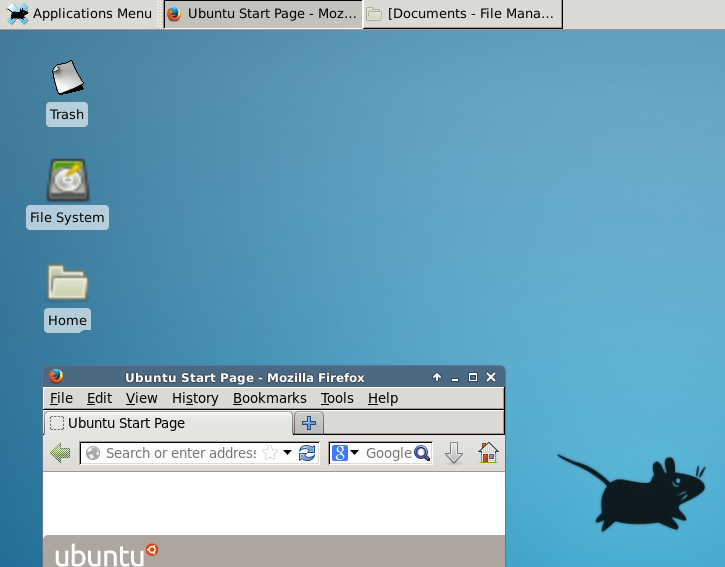
If everything is configured correctly,you should see your xfce
desktop loading and you should be able to perform you work through this
desktop environment.

xrdp shows blank screen on ubuntu 16.04
The quick solution is to install xfce4 package
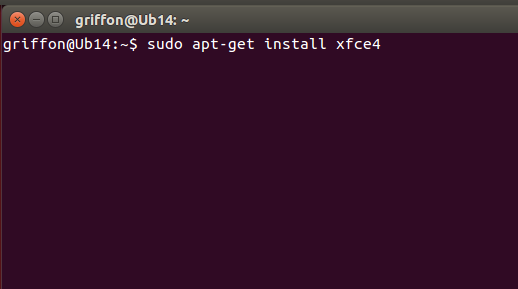
Installing the xfce4 Desktop environment
In the Terminal console; type the following commandsudo apt-get update
sudo apt-get install xfce4
Configure xrdp to use xfce desktop environment
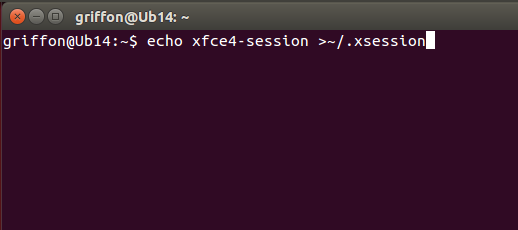
At this stage, you have to configure your Ubuntu machine in order for xrdp to know that the xfce desktop
will be used instead of the Unity or Gnome (which are not working
anymore in Ubuntu). To configure this, from the terminal console, you
will issue the following command
echo xfce4-session >~/.xsession
Restart the xrdp service by issuing the following command
sudo service xrdp restart
Test your xrdp connection
At this stage, you should have a basic
xrdp working solution. When I say basic, I mean that you can indeed
connect to your remote Ubuntu machine but if you disconnect your session
and try to connect again, you will each time open a new session. (Read
below section in this post to see how you can reconnect to the same
session)
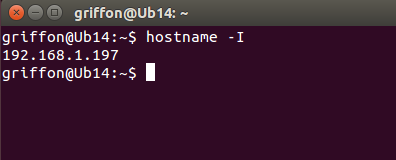
To test your xrdp solution, find the ip
address of your linux machine (or use the name if you have DNS
Infrastructure in place). To find the ip address, issue the command
hostname -I
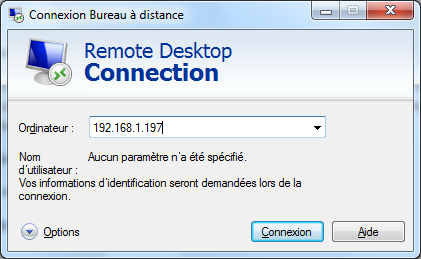
Now go to your windows machine, start remote Desktop client and enter the ip address/name of your ubuntu machine
You should see then the login screen of
xrdp presented to you. Note that, at this screen (and because we have
not configured keyboard layout yet), the keyboard layout is set to English by default.

Enter your username and password and Press OK
You will see a dialog box showing the login process
Reference article: http://c-nergy.be/blog/?p=5305
0
My home network is behind ISP NAT (damn, yes no public IP for me and also port forwarding won't work in this case), but I still want to ssh into my Linux pc at home, so how to ssh into home LAN behind ISP NAT?
Here is how, use Hamachi
First install it on your linux box:

Back to the command line
Then you need to install LogMeIn Hamachi on your remote pc (you can get the download link from your LogMeIn web login page via Networks => Deployment => Add New Link). Then click Joining an existing network after install, login with your email address (after that will send a request to your LogMeIn account for approval if you configure your Mesh network this way). Sure you will approve yourself after LogMeIn online account receive the request.
Setup Hamachi to ssh from anywhere
My home network is behind ISP NAT (damn, yes no public IP for me and also port forwarding won't work in this case), but I still want to ssh into my Linux pc at home, so how to ssh into home LAN behind ISP NAT?
Here is how, use Hamachi
First install it on your linux box:
wget https://www.vpn.net/installers/logmein-hamachi_2.1.0.174-1_i386.deb sudo apt-get install lsb sudo dpkg -ilogmein-hamachi_2.1.0.174-1_i386.deb
Back to the command line
sudo hamachi login
sudo hamachi set-nick $HOSTNAME
sudo hamachi do-join XXX-XXX-XXX
Then you need to install LogMeIn Hamachi on your remote pc (you can get the download link from your LogMeIn web login page via Networks => Deployment => Add New Link). Then click Joining an existing network after install, login with your email address (after that will send a request to your LogMeIn account for approval if you configure your Mesh network this way). Sure you will approve yourself after LogMeIn online account receive the request.
0
"Remote" tab missing in My Computer properties
Article Source:http://windowsxp.mvps.org/remotetab.htm
When you right-click My Computer
icon in the Desktop and choose Properties, the Remote tab may be missing. As a
result, you may be unable to configure the Remote Assistance / Remote Desktop
settings. To restore the tab, follow these steps:
Click Start, Run and type this
command:
regsvr32 %systemroot%\system32\remotepg.dll
If you receive an error stating
that the module could not be found, or stating no registration helper
is registered for this file type (which indicates a corrupt DLL), extracting
a new copy from XP CD should help. Make sure that you extract the updated copy
of the DLL file if you have applied the XP Service Pack in your system.
Register the DLL again.
(Extract the DLL from a
Slipstreamed XP CD, or copy the remotepg.dll from ServicePackFiles\i386 folder
to Windows\System32 folder)
To extract the DLL
from Windows XP CD, type this in Command Prompt
EXPAND X:\I386\REMOTEPG.DL_
-R C:\WINDOWS\SYSTEM32
Where X:\ is
your CD-ROM drive letter. The above command assumes Windows is installed in C:\
drive. If not, change the drive letter / Path accordingly.
Example
EXPAND H:\I386\REMOTEPG.DL_
-R G:\WINDOWS\SYSTEM32
0
VirtualBox Installation crashes with 'IOError: [Errno 30] Read-only file system'
Recently I tried to install Redhat Linux in Virtualbox, however I got the below error.

By default the hard drive I created was a SATA HD, the workaround is to create a IDE hard drive instead and make it as Primary Master ID. This could be a bug in Virtualbox